Git
Remider
Introduction
- What is Git?
- Version control system: tracks changes in code, allows collaboration, and helps manage project history.
- Why use Git?
- Work on different features simultaneously, revert mistakes, and collaborate efficiently.
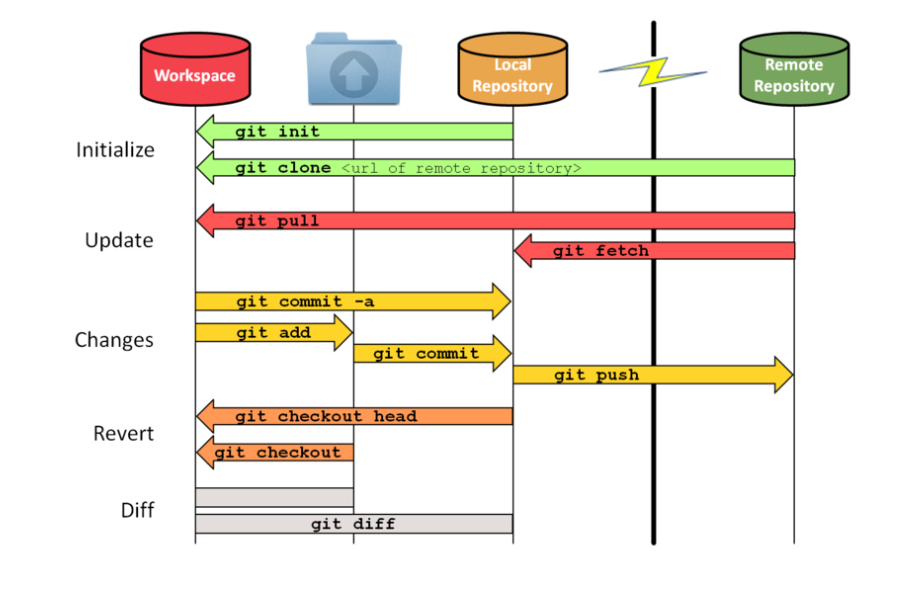
How Git Works
Local vs. Remote Repositories
- Local: Your personal copy of the project on your machine.
- Remote: A shared repository hosted on a server (e.g., GitHub, GitLab).
Basic Workflow
- Make changes locally.
- Stage changes.
- Commit changes to your local repository.
- Push changes to the remote repository (or pull changes from it).
How Git Works
Setting Up Git
Configure Git (one-time setup):
git config --global user.name "Your Name"
git config --global user.email "your.email@example.com"
Initialize a Repository:
git init- This creates a hidden
.gitfolder in your project directory.
- This creates a hidden
Basic Git Commands
Check Status
See which files are modified, staged, or untracked:
git status
Stage Changes
Add files to the staging area:
git add <file>          # Stage a specific file
git add .               # Stage all changes
Commit Changes
Save staged changes to your local repository:
git commit -m "Your descriptive commit message"
View History
See the commit history:
git log
Connect to a Remote Repository
Add a remote repository (e.g., GitHub):
git remote add origin <remote-repository-url>Push changes to the remote repository:
git push -u origin main # Push to the 'main' branchPull changes from the remote repository:
git pull origin main # Pull the latest changes
Clone a Repository
Copy a remote repository to your local machine:
git clone <remote-repository-url>
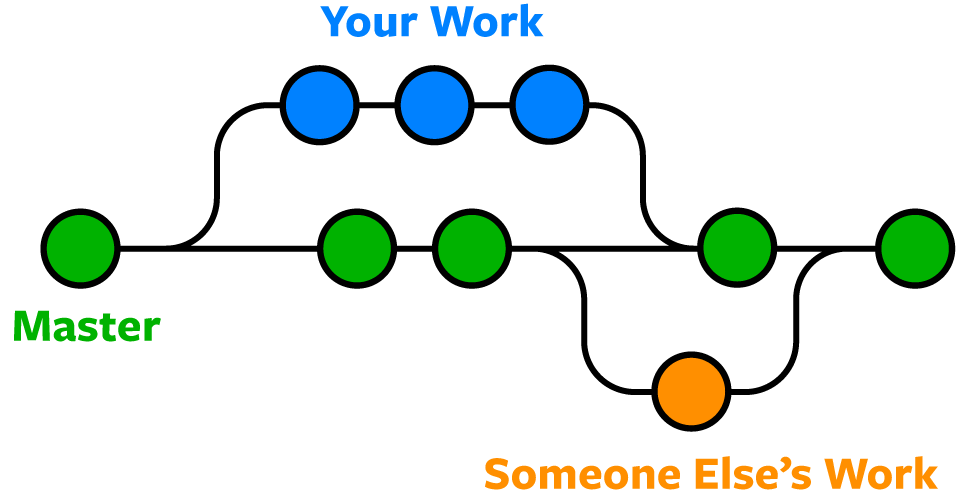
Branching Basics
Why use branches?
- Work on features or fixes without affecting the main codebase.
- Best practice for working as a team : 1 branch per “big part”
Branching Basics
Create a Branch:
git branch <branch-name>         # Create a new branch
git checkout <branch-name>       # Switch to the branch
git checkout -b <branch-name>    # Create and switch to the branch
Merge a Branch:
git checkout main                 # Switch to the main branch
git merge <branch-name>           # Merge the branch into main
Common Mistakes and Fixes
- Oh no I messed up:
- Step 1 : do not panic
- Step 2 : READ the error message / git status and check history
- Step 2 : remember you can always go back to a previous version
- Step 3 : Google is your friend
Common Mistakes and Fixes
Undo Changes:
- Undo a commit (keep changes):
bash git reset --soft HEAD~1 - Discard unstaged changes:
bash git restore <file>
Common Mistakes and Fixes
Resolve Merge Conflicts:
If Git reports conflicts during a merge, manually edit the conflicting files, then:
git add <resolved-file>
git commit
Wrap-Up
Recap:
- Git tracks changes, allows collaboration, and manages project history.
- Use
git add,git commit,git push, andgit pull. - Branches help manage features and fixes separately.
Wrap-Up
Practice makes perfect:
- Experiment with Git commands during the lab work (do NOT designate 1 “Git expert”)
- Solve issues by communicating about what happened